
Schools and learning libraries
Odia classroom lessons
Turn an English science lecture into Odia. Match subject vocabulary to classroom handouts and check that each explanation follows the diagram on screen.


AI dubbing
Translate your video into Odia while keeping the original speaker's voice.
Upload videoSupports MP4, MP3, WAV and SRT files up to 2 GB or 1 hour.
Hear the difference
IIT Madras lecture · Odia edition · Switch versions, then press play to compare.
Create an Odia version of an English lecture, Hindi explainer or recorded story. Keep the original speaker's voice and review the translated content for Odia-speaking viewers.
Turn an English science lecture into Odia. Match subject vocabulary to classroom handouts and check that each explanation follows the diagram on screen.
Explain a service application in Odia. Keep document names consistent with the displayed form and review each instruction against the field it describes.
Dub an equipment-repair lesson into Odia. Verify tool names and the order of assembly with an instructor before sharing it with learners.
Give a field demonstration Odia narration. Have a subject reviewer check crop names and spoken measurements against the source instructions.
Create an Odia edition of a cultural documentary. Review local place names, people’s names and quoted passages with a fluent speaker.
Explain a product setup task in Odia. Retain brand names and English control labels where viewers need to recognise them on the device.
Organisations using Sarvam content workflows


Keep the speaker recognisable and shape the Odia version before you publish.
Choose voice cloning to carry the original speaker's vocal identity into the Odia version.
Workflow illustration · Review the result in your workspace
For developers
Create Odia versions from your application. Upload the source, track the dubbing job and retrieve the finished video and subtitles.
Python SDK · Set SARVAM_API_KEY in your server environment
import os
from pathlib import Path
from sarvamai import SarvamAI

client = SarvamAI(
    api_subscription_key=os.environ["SARVAM_API_KEY"]
)
media = Path("source-video.mp4")

job = client.dubbing.create(
    source_language_code="en-IN",
    target_language_codes=["or-IN"],
    export_options=["video", "srt"],
    voice_cloning=True,
    num_speakers=1,
    job_name=media.name,
)
client.dubbing.upload(job.data.upload_url, media)
client.dubbing.start(job_id=job.data.job_id)
Translate your video into Odia, review the dialogue and download your dub in Sarvam.
Add an MP4 or MOV video, or an MP3 or WAV recording, in the dubbing workspace.
Select the source language, Odia as the target, speaker count and voice. Then create the dub.
Listen to the Odia version beside the original. Edit translated lines and regenerate any blocks that need a correction.
Set the audio mix and export the reviewed video. The API also provides separate audio and SRT subtitles.
Upload your video, choose Odia and select the speaker's voice. Review the translated version in Sarvam's dubbing workspace.
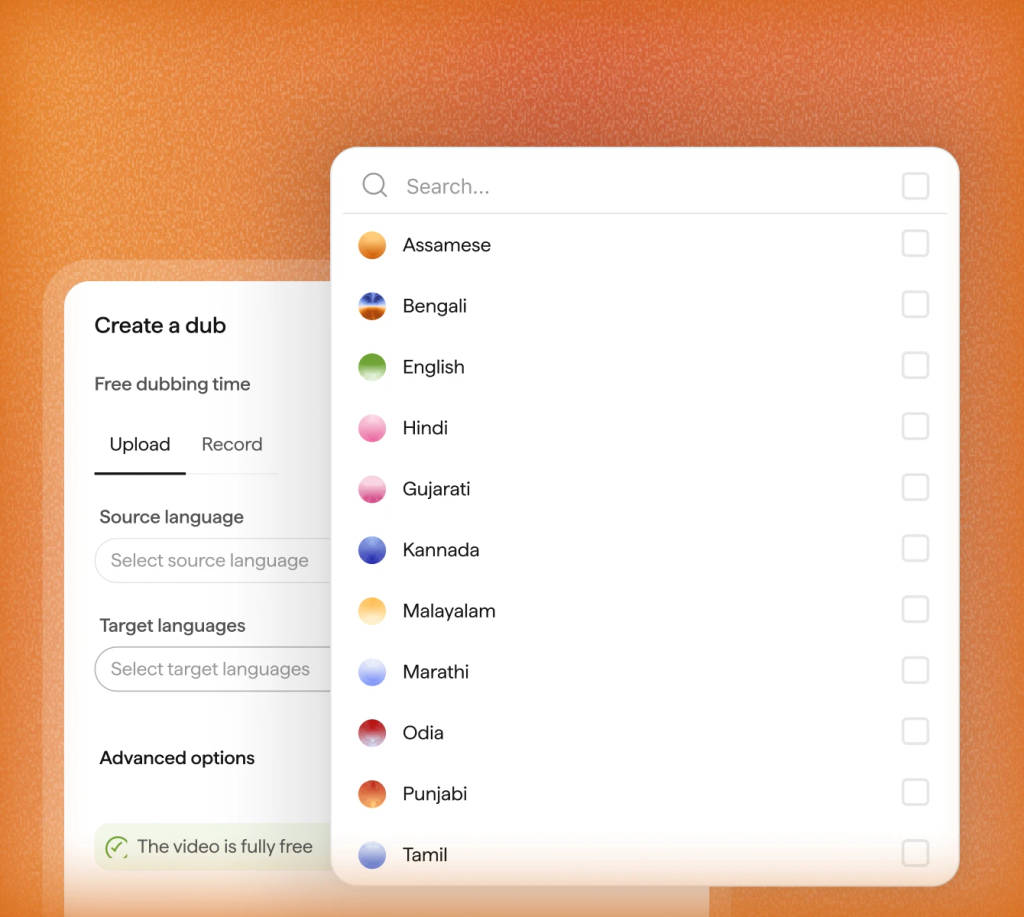
Correct a name or adjust a phrase in the Odia script. Regenerate that block, listen again and set the audio mix before export.
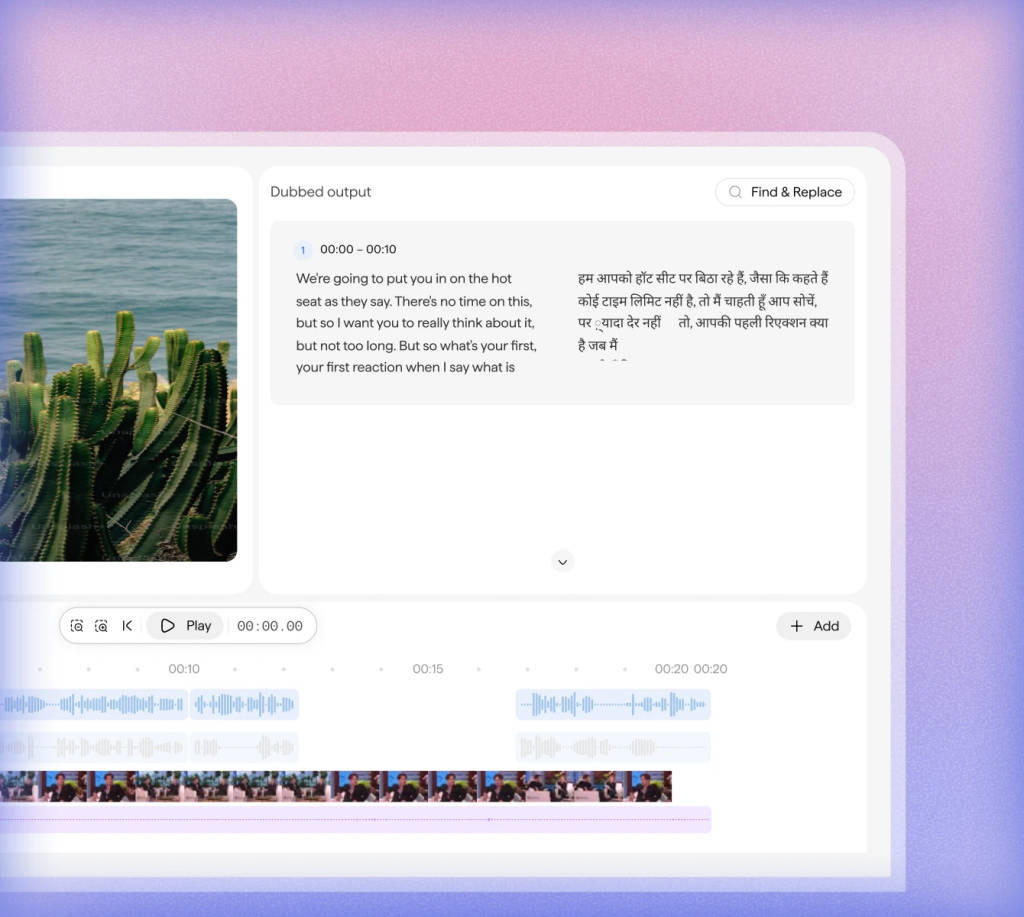
Yes. Choose English as the source and Odia as the target in Sarvam. Review the translated terminology and listen to the generated narration before exporting the lesson.
Odia is the current English name for the language historically called Oriya. Select Odia in the dubbing workspace; the language code used by the API is or-IN.
AI dubbing translates speech from a video or audio recording into Odia and generates a new voice track. Sarvam lets you review the translated script, edit individual lines and export the dubbed version.
The workspace accepts MP4 and MOV video, or MP3 and WAV audio, with uploads up to 2 GB. The dubbing API also accepts MKV, WebM, AVI, FLV, WMV and M4A. API size and duration limits depend on your plan.
Yes. Set the number of speakers during setup and choose voice cloning to retain their vocal identities. You can also leave the speaker count and source language on auto-detect. Review each speaker’s lines in the Odia output, especially where voices overlap.
Yes. Edit the translated text in its timestamped block, regenerate that block’s audio and listen again. You can compare it with the original and adjust the dubbed, original and background audio levels before export.
The workspace exports the reviewed dubbed video. For separate deliverables, the dubbing API can generate video, audio and an SRT subtitle file for Odia. Request the formats you need in export_options when creating the job.
The default Starter API rate is ₹40 per minute of source media for each target language, billed per whole second. A 5-minute video dubbed into one language costs ₹200 at that rate. Editor-enabled API jobs use a different rate. On the Sarvam platform, dubbing with the editor costs ₹80 per minute, and your first 30 minutes are free when you sign up. In the workspace, check the credit estimate before creating your dub. See the linked documentation for current pricing.
Use or-IN as the target language code in Sarvam’s dubbing API. Create a job, upload your media, start processing and poll until completion. Then retrieve the requested exports. You can include multiple target languages in one job.
Product details checked on 21 September 2026. Workspace guide · API limits and pricing
Explore dubbing guides and examples for more Indian languages.
Pick the kind of video or recording you work with.
Create your next video in Odia Upload your source video, choose a language and review the new version in Sarvam.
Create your next video in Odia
Upload your source video, choose a language and review the new version in Sarvam.